ドキュメント / cc-doc-tracker
クラウド環境の設定
2026-09-23 に取得した公式ドキュメントです。各バージョンの公開後に追加された説明を含む場合があります。
公式ドキュメントを開く ↗目次
英語の原文を掲載しています。
Configure cloud environments for Claude Code cloud sessions: network access levels, environment variables, setup scripts, and environment caching.
Cloud environments apply to cloud sessions, which are in research preview for Pro, Max, and Team users, and for Enterprise users with premium seats or Chat + Claude Code seats.
Each cloud session runs in a cloud environment. You can configure an environment to allow or deny network access, set environment variables for the session, on Pro and Max plans store API credentials that sessions use without seeing them, and run a setup script before Claude starts working.
The same environments apply wherever you start a cloud session: the Desktop app, the Claude mobile app, your browser at claude.ai/code, the terminal with claude --cloud, routines, and Claude Tag. Each of these surfaces can also route to a self-hosted environment. Availability and limitations covers what Claude can't use yet when a Claude Tag session runs in one.
Remote Control sessions connect the web and mobile interfaces to a session on your own machine, which uses your machine's network and files, not a cloud environment. Claude Tag channel sessions use organization-level environments only, either shared environments or self-hosted environments.
The Default environment
If you don't have an environment yet, onboarding sets up the Default environment. How depends on where you onboard:
- CLI flows such as
/web-setup: create Default for you - Web onboarding on Pro and Max: creates Default for you
- Web onboarding on Team and Enterprise: shows a Create your first cloud environment form unless an Owner has turned on Quick web setup; keep the form's defaults and click Create & finish to get the same Default environment
Default carries no configuration of its own:
- Trusted network access: sessions reach package registries and other allowlisted domains, and nothing else through the session's network.
- No other configuration: Default defines no environment variables or setup script, so sessions start with just the pre-installed tools.
With only Default available, every session runs in it. When you have more than one environment, sessions choose one per surface:
- In the Desktop app, the mobile app, and at claude.ai/code, sessions you start yourself use the environment shown in the selector. An organization default set by an Owner fills the selection when you haven't picked one. Threads in a project use the environment set in the project's settings instead.
- From the CLI, Claude Code uses your
/remote-envpick, or falls back to the Anthropic-hosted environment when your list has one, and otherwise to the first environment in your list that isn't a bridge environment, an entry Remote Control registers to represent your own machine rather than a cloud environment. For a self-hosted environment, passing--environment <environment-id>with itsccpool_ID when you dispatch a session overrides the/remote-envpick and the fallback for that invocation. Claude Code rejects Anthropic-hostedenv_IDs passed to the flag, so use/remote-envto target those. The flag requires Claude Code v2.1.224 or later.
Configure an environment when the default isn't enough: when Claude needs to reach domains outside the default allowlist, needs environment variables set for its sessions, or needs dependencies installed before it starts working.
Configure your environment
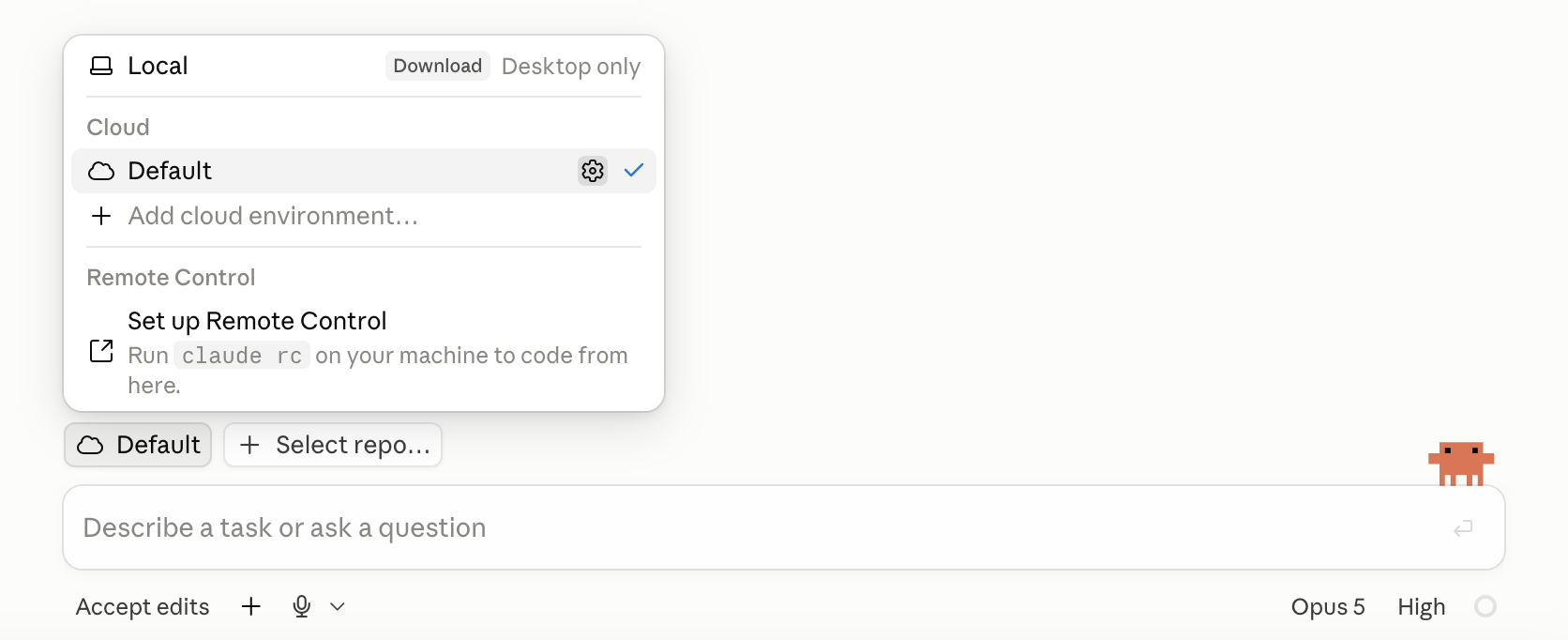
Create, edit, and archive environments from the environment selector, which you reach at claude.ai/code after web onboarding, or from the prompt box in the Desktop app. Environments you create are personal to your account; shared environments created by an Owner appear in the same selector. See Installed tools for what's available without any configuration.
Open the environment selector
On claude.ai/code, select the cloud icon showing the current environment's name, in the row above the message box. There's no settings page or direct URL for the selector.
Add or edit an environment
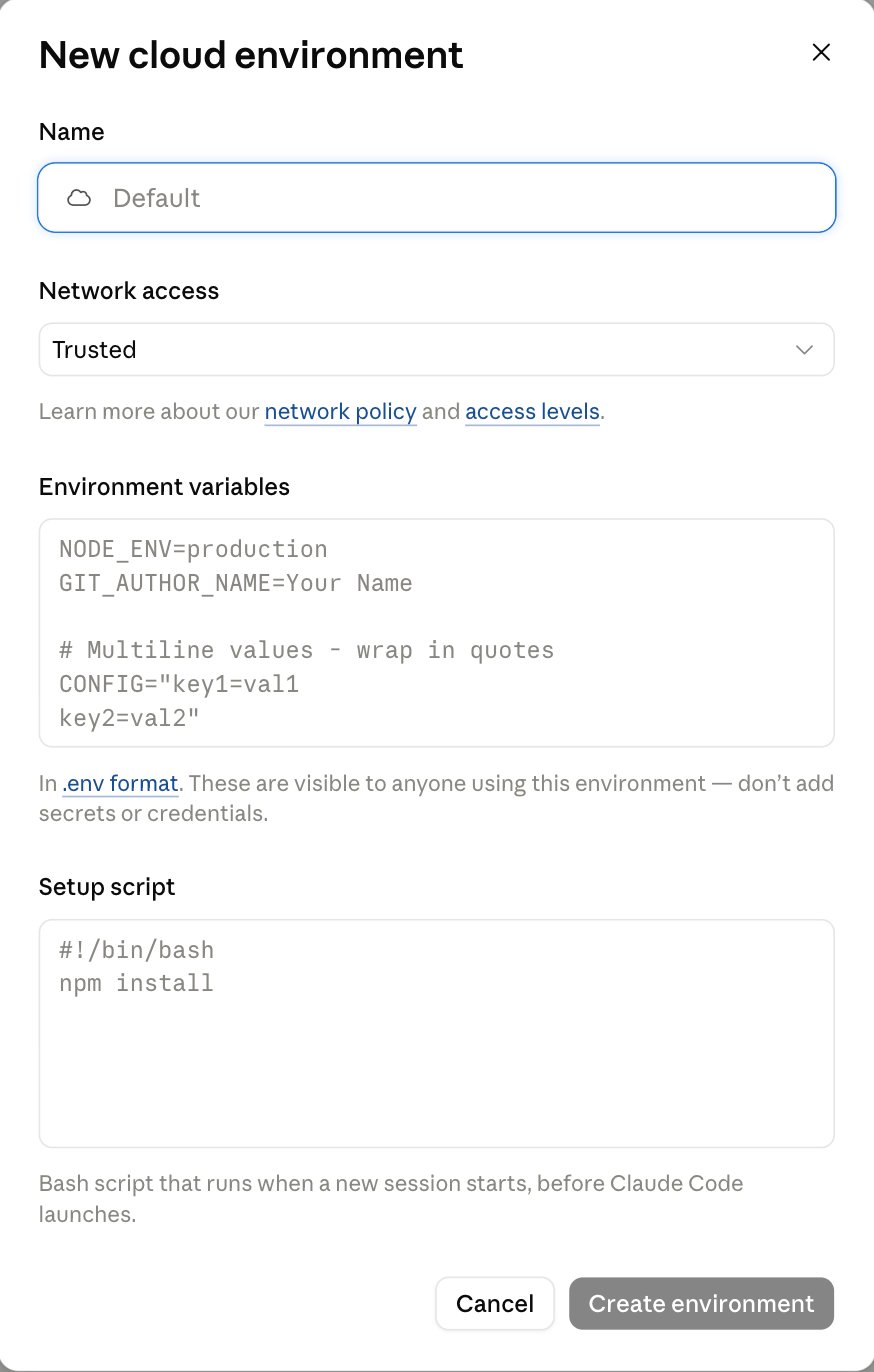
Select Add cloud environment, or hover over an existing environment and select the settings icon that appears on the right. The dialog includes the name, network access level, environment variables, and setup script. When you edit an existing cloud environment on a Pro or Max plan, the dialog also includes API credentials.
Set environment variables
Environment variables use .env format, one KEY=value pair per line. Plain values don't need quotes, and if you quote a value with a matching pair, the quotes don't become part of the value. Quote a value that spans multiple lines or contains a #: in an unquoted value, # starts a comment and the rest of the line is dropped.
The following example defines three variables.
NODE_ENV=development
LOG_LEVEL=debug
DATABASE_URL=postgres://localhost:5432/myapp
Each session copies the environment's values once, at startup, into ordinary environment variables that any command Claude runs can read. Because running sessions don't re-read the configuration, editing or adding variables affects sessions you start afterward; sessions already running keep the values they started with.
A cloud session also sets some variables itself when it starts. For CLAUDE_AUTOCOMPACT_PCT_OVERRIDE, the value the session sets overrides one you add here, so adding that key here has no effect.
Anyone who uses the environment can read the values. On Pro and Max plans, use an API credential instead for a key the agent proxy can attach to a request. The requests that never get a credential are listed there.
Add API credentials
An API credential is an API key or token you store on a cloud environment so Claude can call that API from any session in the environment without seeing the key. Anthropic's agent proxy adds the key to requests for the hosts you list, after each request leaves the session's VM. The key never reaches Claude, the commands it runs, or the session's environment variables.
API credentials are available on Pro and Max plans. They aren't available on Team or Enterprise plans yet, so the API credentials section doesn't appear in the environment dialog on those plans.
Requirements
Two of these decide whether you can add a credential, and two decide whether the agent proxy can use it once added:
- Role: an organization admin role in your claude.ai organization
- On Team and Enterprise, Owners hold it and Admins don't
- On Pro and Max, you hold it in your own organization
- Without it, you see a note instead of the credential list, on your own environments too. Ask an Owner to add the credential to a shared environment and run your sessions there
- Environment type: an Anthropic-hosted cloud environment that already exists. A self-hosted environment doesn't have API credentials
- API reachability: the API accepts connections from the internet, because requests leave from Anthropic's network
- Encryption keys: if your organization uses customer-managed encryption keys, you can't save credentials
Add a credential
You add credentials one at a time from the editor of an environment that already exists. The dialog for a new environment doesn't offer them. There's no edit, either. To change a credential's hosts or value, delete it and add it again.
Open the environment's API credentials
Open the environment for editing at claude.ai/code. In the Update cloud environment dialog, find API credentials below Environment variables. You see the credentials already on the environment, each with the hosts it applies to.
Add the credential
Select Add credential and fill in the form. Keep the default Credential type, Bearer, for an API key that travels in a request header, and fill in these fields:
- Name: a label for the credential, such as
Internal billing API - Allowed websites: the API's hosts, such as
api.example.com. A leading*.matches every subdomain - Custom headers: one row for the header that carries the key. The row starts with
Authorizationas the header's Name andBeareras its Prefix; paste the key itself as the Value. For a header likeX-Api-Keythat takes the bare value, change the name and clear the prefix
For an API that authenticates another way, pick a different Credential type. The list is the same one Claude Tag, the Slack integration for Team and Enterprise plans, offers for connections.
Save the credential
Select Connect. The credential appears in the list with its hosts, saved without the dialog's Save changes button. You can't view the value again after saving.
To confirm the credential works, start a session in the environment and ask Claude to call the API, for example with curl. The API answers as if the key were in the request, and the key doesn't appear in the session's environment variables or in any file. If the list marks a credential Not sent instead, the note under it says why and what to do. Two credentials whose hosts overlap without matching exactly get no marker, and the agent proxy sends only one of them.
Which requests get the credential
The agent proxy attaches a credential to a request when the request's host matches one you listed on that credential. Sessions can reach those hosts even when the environment's network access level wouldn't otherwise allow them, except the hosts that never get the credential. The credential applies in every session that runs in the environment, whoever started it, until you delete it.
Requests that never get the credential
The agent proxy never attaches a credential you add to these requests:
- GitHub: the GitHub proxy authenticates requests to GitHub instead, so you don't need an API credential for it
- The Anthropic API and public package registries:
api.anthropic.com,registry.npmjs.org,jsr.io,npm.jsr.io,pypi.org,files.pythonhosted.org,index.crates.io, andproxy.golang.org - Setup script requests: Claude Code connects to the agent proxy when it launches, after the setup script has run
Select an environment from the CLI
Run /remote-env in your terminal to choose the default environment for cloud sessions you create from the CLI, such as claude --cloud. The command opens a picker of your existing environments and saves your choice to the remote.defaultEnvironmentId key in your user settings, so it applies in every project on your machine until you change it, unless the same key is set at a higher-precedence settings layer, such as a repo's project settings.
A self-hosted environment ID, which has the form ccpool_..., follows a stricter source rule. See remote.defaultEnvironmentId for the settings layers Claude Code honors it from.
/remote-env only sets the default: it doesn't start a session, and it can't add or edit environments. Manage them from the environment selector.
Archive an environment
To archive one of your own environments, open it for editing and select Archive. An Owner archives a shared environment from the Cloud environments page in admin settings. You can't delete an environment, only archive it.
Archiving affects new sessions, not running ones:
- Sessions already running in the environment continue to work.
- The environment disappears from the selector and from
/remote-env, so you can't pick it for new sessions. - API credentials on the environment stay attached in its running sessions. Delete any you no longer want before you archive.
- No new session can start in an archived environment, on any surface. If the environment was your saved CLI default, Claude Code starts CLI cloud sessions in the Anthropic-hosted environment when your list has one, and otherwise in the first environment in your list that isn't a Remote Control bridge environment. Anything configured with the environment explicitly, such as a routine, can't start new sessions in it. Point it at another environment.
Organization-shared environments
On Team and Enterprise plans, an Owner can create cloud environments that are shared with every member of the organization. The same role manages everything else on the Cloud environments admin page, including self-hosted environments; the Admin role can't open the page. The full list of roles that can open it is the one for managing server-managed settings.
Shared environments appear in each member's environment selector under an Organization heading, after the member's own environments under Personal, so a team can standardize on one configuration instead of each member recreating it. Selecting a shared environment's settings icon there opens a read-only summary of its configuration for every member, Owners included.
An Owner makes an environment available to the organization in one of two ways:
- Create a shared environment: use the Cloud environments page in admin settings, which is also where Owners edit and archive shared environments. Each one has a name, a network access level, environment variables in
.envformat, and a setup script. - Share a personal environment: open one of your own environments for editing in the environment selector, then share it from the Who can use it row. The environment keeps its ID, so sessions and routines that already use it aren't affected, and every member can then see it and start sessions in it.
Owners choose the organization's default environment separately, at claude.ai/admin-settings/claude-code.
Every member's sessions in a shared environment read its variables, so don't include secrets in them. API credentials, which give sessions a key they can't read, aren't available on Team or Enterprise plans yet.
Set the environment a Claude Tag channel uses
In Claude Tag channels, Claude works as your organization's shared identity, not as any member, so channel sessions use organization-level environments only, either shared environments or self-hosted environments. To give a channel a toolchain that isn't pre-installed, such as .NET, an Owner can create a shared environment from the Cloud environments admin page with a setup script that installs it. Point the channel at an environment in one of two ways:
- Set a shared or self-hosted environment as the organization's default environment at claude.ai/admin-settings/claude-code.
- Pin one to a channel in the Claude Tag admin settings.
Network access
Each environment sets one network access level, which controls the outbound connections its sessions can make. The default level, Trusted, allows package registries and other allowlisted domains; Custom takes your own domain list.
To change an environment's network access, open it for editing and use the Network access selector in the dialog. A shared environment opens read-only there, so an Owner changes its network access from the Cloud environments page in admin settings instead. The cloud icon that opens the selector appears on the app surfaces listed under The Default environment and in the routine editor; personal environments don't have a separate page in your claude.ai account settings.
MCP connectors you enable on a session or routine work without adding their hosts to Allowed domains, because connector traffic travels through Anthropic's servers rather than the session's network. This relies on the same Anthropic-bound channel noted under Security and isolation. Turn off any connector you don't need to limit which tools Claude can reach.
Access levels
The Network access field in the environment dialog takes one of four levels:
| Level | Outbound connections |
|---|---|
| None | No outbound network access through the session's network |
| Trusted | Allowlisted domains only: package registries, GitHub, cloud SDKs |
| Full | Any domain |
| Custom | Your own allowlist, optionally including the defaults |
Whichever level you pick, sessions can still reach these, because each one takes a path that doesn't go through the session's network allowlist:
- GitHub, through its separate proxy
- MCP connectors you enable, whose traffic travels through Anthropic's servers
- The hosts you listed on the environment's API credentials, except the hosts that never get the credential
- The Anthropic API, for Claude Code's own requests, even at None, as noted under Security and isolation
Allow specific domains
To allow domains that aren't in the Trusted list, select Custom in the environment's network access settings, then list one domain per line in the Allowed domains field. This example allows three hosts an internal project might need.
api.example.com
*.internal.example.com
registry.example.com
Sessions in this environment can now reach api.example.com, any subdomain of internal.example.com, and registry.example.com, and no other domains through the session's network. GitHub traffic, MCP connector traffic, and requests to the hosts of the environment's API credentials, other than the hosts that never get the credential, don't go through this allowlist. A leading *. matches every subdomain. To keep the Trusted domains too, check Also include default list of common package managers; leave it unchecked to allow only what you list.
If your organization uses artifacts, you don't need *.frame.claudeusercontent.com in the list for sessions to read them. When the list leaves that host out, Claude Code reads artifact content through the session's connection to Anthropic instead. Keep the host in an allowlist in two situations:
- Sessions in this environment open another organization's public artifacts: Claude Code fetches those from the host directly, so add it to this list.
- You're configuring the local CLI or a self-hosted runner: keep the host in that allowlist. See network access requirements and the self-hosted network requirements.
Each environment has its own allowed-domains list; there's no organization-level allowlist that admins can push to every member's environments. Server-managed settings still apply inside cloud sessions, but none of them adds domains to the environment's network allowlist. To give a team one standard list, an Owner can create an organization-shared environment with Custom network access and that list.
GitHub proxy
In Anthropic-hosted environments, all GitHub operations go through a dedicated proxy that keeps your real GitHub credentials outside the session's VM, independent of the environment's access level. Sessions in a self-hosted environment authenticate git operations with credentials your deployment provides; Configure git covers the options, including per-session minted credentials and an opt-in to this same proxy. The proxy provides:
- Git credentials: the git client inside the VM uses a scoped credential, which the proxy verifies and swaps for your actual GitHub token.
- API requests: requests from the built-in GitHub tools, and from
ghunder theproxy-injectedplaceholder, go out with your real credentials substituted. - Push protection:
git pushworks only against the session's current working branch; cloning, fetching, and PR operations work normally. - Repository scope: GitHub API and release-asset requests reach only repositories attached to the session, so a setup script that downloads release assets from an unattached repository gets a 403.
- GraphQL restrictions: the proxy serves only a pinned set of GraphQL operations for pull-request workflows. The proxy rejects everything else on the GraphQL endpoint with a 403 that says
This GraphQL query is not enabled for this sessionand names the REST fallback,gh api repos/{owner}/{repo}/.... The restriction applies to every request through the proxy regardless of the credentials you supply, so aGH_TOKENyou set gets the same 403. Claude can't reach GitHub APIs that exist only in GraphQL, such as Projects v2, through the proxy.
Committed files from public repositories arrive through raw.githubusercontent.com, which the security proxy handles instead. That domain is in the default Trusted list, so those files stay reachable unless the environment's access level excludes it.
Security proxy
Cloud sessions in Anthropic-hosted environments run behind an HTTP/HTTPS network proxy for security and abuse prevention purposes; in a self-hosted environment, outbound traffic leaves through your own network boundary instead. All outbound internet traffic from an Anthropic-hosted session passes through this proxy, which provides:
- Protection against malicious requests
- Rate limiting and abuse prevention
- Content filtering for enhanced security
- A DNS-level audit trail of requested hostnames
What's available in cloud sessions
In Anthropic-hosted environments, each session gets a fresh virtual machine (VM) running Ubuntu 24.04 on x86_64, regardless of your own operating system and CPU architecture, with your repository cloned and common toolchains pre-installed. When a dependency provides precompiled binaries, such as Ruby gems with native extensions or prebuilt Python wheels, use its x86_64 Linux build to match the VM. This section covers the Anthropic-hosted defaults, the built-in GitHub tools, how to run tests and services, and the resource limits each VM gets.
Sessions your organization routes to a self-hosted environment run on your own runners instead, with the tools your runner image provides.
What carries over from your setup
Cloud sessions start from a fresh clone of your repository. Anything you commit to the repo is available. Anything you've installed or configured only on your own machine isn't available in the session. Your organization's policy arrives separately through server-managed settings.
| Available in cloud sessions | Why | |
|---|---|---|
Your repo's CLAUDE.md |
Yes | Part of the clone |
Your repo's .claude/settings.json hooks and permission rules |
Yes, in a session with one repository | Part of the clone. A session with several repositories, including a project thread, starts above the clones and doesn't read them |
Your repo's .mcp.json MCP servers |
Yes, in a session with one repository | Part of the clone, found from the session's working directory |
Your repo's .claude/rules/ |
Yes | Part of the clone |
Your repo's .claude/skills/, .claude/agents/, .claude/commands/ |
Yes | Part of the clone |
Plugins and marketplaces declared in your repo's .claude/settings.json |
No | A cloud session doesn't install the plugins a repository turns on under enabledPlugins, including ones from the marketplaces it lists under extraKnownMarketplaces. Enable the plugin for your claude.ai account instead, so Claude Code loads it as a synced plugin |
| Your organization's server-managed settings | Yes | Fetched from Anthropic's servers when the session starts. See Surface coverage for how availableModels is enforced in cloud sessions. Settings deployed to your device through MDM or managed settings files don't apply, because the session runs on an Anthropic-managed VM; in a self-hosted environment, sessions also read the managed settings file in the runner image, per how Claude Code combines managed sources |
Your user ~/.claude/CLAUDE.md |
No | Lives on your machine, not in the repo |
Your user ~/.claude/skills/, ~/.claude/agents/, ~/.claude/commands/ |
No | Live on your machine, not in the repo. Commit them to the repo's .claude/ directory instead. Cloud sessions automatically load skills you enable on claude.ai |
| Plugins enabled only in your user settings | No | User-scoped enabledPlugins lives in ~/.claude/settings.json on your machine. Enable them for your claude.ai account instead, so Claude Code loads them as synced plugins |
MCP servers you added with claude mcp add at the default local scope or the user scope |
No | Those write to ~/.claude.json on your machine, not the repo. Add the server with claude mcp add --scope project, which writes the repo's .mcp.json, and commit that file. A session with one repository loads it |
Transport variables in your repo's .claude/settings.json env block, such as NODE_EXTRA_CA_CERTS and the mTLS client certificate variables |
No | The hosting environment manages the session's API connection, so Claude Code ignores these keys and notes each ignored key in the session's debug log |
| API keys and tokens for services Claude calls | On Pro and Max plans, as API credentials | You add the key once on the environment and the agent proxy attaches it to requests for the hosts you list. A key the agent proxy can't attach, or any key on a Team or Enterprise plan, stays in an environment variable |
| Interactive auth like AWS SSO | No | Not supported. SSO requires browser-based login that can't run in a cloud session |
To make your own configuration available in cloud sessions, commit it to the repo.
Anyone who uses the environment can read its environment variables and setup script. The dialog's note under Environment variables says so and warns against putting secrets there. On Pro and Max plans, store a key the agent proxy can attach as an API credential instead.
Installed tools
Cloud sessions come with common language runtimes, build tools, and databases pre-installed. The table below summarizes what's included by category.
| Category | Included |
|---|---|
| Python | Python 3.x with pip, poetry, uv, black, mypy, pytest, ruff |
| Node.js | 20, 21, and 22, with npm, yarn, pnpm, bun¹, eslint, prettier, chromedriver |
| Ruby | 3.1, 3.2, 3.3 with gem, bundler, rbenv |
| PHP | 8.3 with Composer |
| Java | OpenJDK 21 with Maven and Gradle |
| Go | Go with module support |
| Rust | rustc and cargo |
| C/C++ | GCC, Clang, cmake, ninja, conan |
| Docker | docker, dockerd, docker compose |
| Databases | PostgreSQL 16, Redis 7.0 |
| Utilities | git, gh, jq, yq, ripgrep, tmux, vim, nano |
¹ Bun is installed but has known proxy compatibility issues for package fetching.
To get the versions of most of the tools in this table, ask Claude to run check-tools in a cloud session. It's a shell command installed on the session VM, not a command you type with /; you ask Claude because Claude runs all VM commands for you. For a tool it doesn't report, such as Ruby, PHP, bun, PostgreSQL, or Redis, ask Claude to run the tool's own version command, for example psql --version.
Node.js versions are installed at /opt/node20, /opt/node21, and /opt/node22, with 22 on PATH by default. To work with a different version, ask Claude to prepend that version's bin directory, such as /opt/node20/bin, to PATH.
Toolchains outside this list, such as the .NET SDK, aren't pre-installed even when their package registries are on the default allowlist. Install them with a setup script.
Work with GitHub issues and pull requests
Cloud sessions include built-in GitHub tools that let Claude read issues, list pull requests, fetch diffs, and post comments without any setup. These tools authenticate through the GitHub proxy using whichever method you configured under GitHub authentication options, so your token never enters the container.
You can set GH_TOKEN or GITHUB_TOKEN yourself in environment settings, or leave both unset and let the GitHub proxy authenticate for you:
- If you set a token, it passes through to the container unchanged, so your scripts and GitHub's
ghCLI use it directly. - If you set neither and the GitHub proxy is handling authentication for your session, both variables read as the placeholder string
proxy-injectedin the commands Claude runs, and the proxy substitutes your real credentials on outbound GitHub requests.ghworks without a token of your own, but a script that readsGITHUB_TOKENdirectly gets the placeholder, not a usable token.
A token you set is an ordinary environment variable, so anyone who uses the environment can read it; the proxy path keeps the credential out of the environment configuration and the session VM.
To check which case applies to your session, ask Claude to run echo $GH_TOKEN.
GitHub's gh CLI is pre-installed. If you need a gh command the built-in tools don't cover, like gh release or gh workflow run, ask Claude to run it. gh reads GH_TOKEN automatically, so you don't need to run gh auth login.
Link output back to the session
Each cloud session has a transcript URL on claude.ai, and the session can read its own ID from the CLAUDE_CODE_REMOTE_SESSION_ID environment variable. Use this to put a traceable link in PR bodies, commit messages, Slack posts, or generated reports so a reviewer can open the run that produced them.
Commits that Claude creates in a cloud session include a Claude-Session: <url> git trailer, and PR bodies include the session URL on its own line. To omit the trailer and the PR-body link, set attribution.sessionUrl to false.
To include the session link in something other than a commit or PR, such as a Slack message Claude posts or a report file it writes, have Claude run the following command and use its output. The command converts the cse_ prefix in the environment variable's value to the session_ prefix that the transcript URL expects:
echo "https://claude.ai/code/${CLAUDE_CODE_REMOTE_SESSION_ID/#cse_/session_}"
Run tests, start services, and add packages
You don't get a shell into the session VM. Claude runs every command for you, so phrase the tasks in this section as requests in your prompt.
Run tests
Claude runs tests as part of working on a task. Ask for it in your prompt, like "fix the failing tests in tests/" or "run pytest after each change." Test runners that come with the pre-installed toolchains, like pytest and cargo test, work without additional setup. A runner your project declares as a dependency, like jest, installs with your dependencies.
Start services
PostgreSQL and Redis are pre-installed but not running by default. Ask Claude to start whichever you need; the commands it runs are:
service postgresql start
service redis-server start
Docker is available for running containerized services. Ask Claude to run docker compose up to start your project's services. Network access to pull images follows your environment's access level, and the Trusted defaults include Docker Hub and other common registries.
If your images are large or slow to pull, add docker compose pull or docker compose build to your setup script. The environment cache keeps the pulled images, so each new session has them on disk. The cache stores files only, not running processes, so Claude still starts the containers each session.
Add packages
To add packages that aren't pre-installed, use a setup script. The environment cache keeps what the script installs, so packages you install there are available at the start of every session without reinstalling each time. You can also ask Claude to install packages mid-session, but those installs don't carry over to other sessions.
Resource limits
Cloud sessions in Anthropic-hosted environments run with approximate resource ceilings that may change over time:
- 4 vCPUs
- 16 GB of RAM
- 30 GB of disk
The VM may stop tasks that need significantly more memory, such as large build jobs or memory-intensive tests. For workloads beyond these limits, use Remote Control to run Claude Code on your own hardware, or run cloud sessions in a self-hosted environment on compute your organization operates.
Setup scripts
A setup script is a Bash script that runs when a new cloud session starts, before Claude Code launches. Use setup scripts to install dependencies, configure tools, or fetch anything the session needs that isn't pre-installed.
Scripts run as root on Ubuntu 24.04, so apt install and most language package managers work.
To add a setup script, open the environment settings dialog and enter your script in the Setup script field.
This example installs ShellCheck, which isn't pre-installed.
#!/bin/bash
apt update && apt install -y shellcheck
Script requirements
A setup script has three constraints to write around:
- Exit zero: if the script exits non-zero, the session fails to start. Append
|| trueto non-critical commands so an intermittent install failure doesn't block the session. - Finish within five minutes: keep the script's total runtime under roughly five minutes so the environment cache can build. Run independent installs in parallel with
&andwait, and move any single download that won't fit into a SessionStart hook that launches it in the background. - Network access for installs: package installs need to reach registries. The default Trusted level covers common package registries including npm, PyPI, RubyGems, and crates.io; with None network access, installs fail.
Environment caching
The setup script runs the first time you start a session in an environment. After it completes, Anthropic snapshots the filesystem and reuses that snapshot as the starting point for later sessions. New sessions start with your dependencies, tools, and Docker images already on disk, and skip the setup script step. This keeps startup fast even when the script installs large toolchains or pulls container images.
The cache is a filesystem snapshot, so it keeps what the setup script writes to disk and loses anything that was only running. Packages you install, Docker images you pull, and files you write all carry over. A database the script started, a docker compose up stack, or any other background process doesn't; start those per session by asking Claude or with a SessionStart hook.
The setup script runs again to rebuild the cache when you change the environment's setup script or allowed network hosts, and when the cache reaches its expiry after roughly seven days. Resuming an existing session never re-runs the setup script.
You don't need to enable caching or manage snapshots yourself.
Setup scripts vs. SessionStart hooks
Use a setup script to provision the VM itself: toolchains and CLI tools that aren't pre-installed. Use a SessionStart hook for project setup that should run everywhere, cloud and local, like npm install.
Setup scripts and SessionStart hooks run in a fixed order when a cloud session starts. The table compares where you configure them, when they run, and where they run.
| Setup scripts | SessionStart hooks | |
|---|---|---|
| Where you configure them | The environment dialog at claude.ai/code, plus the Cloud environments admin page for shared environments | A settings file such as your repo's .claude/settings.json; see What carries over from your setup for which files reach a cloud session |
| When they run | Before Claude Code launches, skipped when a cached environment exists | After Claude Code launches, on every session including resumed |
| Where they run | Cloud sessions only | Local and cloud sessions |
If you have SessionStart hooks in your user-level ~/.claude/settings.json, don't expect them in the cloud. User-level settings stay on your machine. Which other hooks run depends on where the session runs:
- Anthropic-hosted environment: Claude Code runs hooks from the repository and from your organization's server-managed settings.
- Self-hosted environment: Claude Code also runs the hooks the operator seeded from the runner host's
~/.claude/, and the hooks in the runner image's managed settings file when that file is one of the managed sources Claude Code applies.
Install dependencies with a SessionStart hook
To install dependencies only in cloud sessions, pair a SessionStart hook with a script that checks where it's running.
First, add a SessionStart hook to your repo's .claude/settings.json. This configuration tells Claude Code to run scripts/install_pkgs.sh from your repository whenever a session starts or resumes:
{
  "hooks": {
    "SessionStart": [
      {
        "matcher": "startup|resume",
        "hooks": [
          {
            "type": "command",
            "command": "bash \"$CLAUDE_PROJECT_DIR\"/scripts/install_pkgs.sh"
          }
        ]
      }
    ]
  }
}
The matcher limits the hook to the startup and resume events, and $CLAUDE_PROJECT_DIR resolves to the repository root, so the hook finds the script regardless of the session's working directory.
Next, create the script at scripts/install_pkgs.sh. It exits immediately outside the cloud, then installs your dependencies:
#!/bin/bash

if [ "$CLAUDE_CODE_REMOTE" != "true" ]; then
  exit 0
fi

npm install
pip install -r requirements.txt
exit 0
The CLAUDE_CODE_REMOTE check is what scopes the install to cloud sessions: the session VM's environment carries that variable as true, it's never true locally, so on your laptop the script exits before installing anything.
Together, the two files give every cloud session a fresh npm install and pip install at startup while leaving local sessions untouched.
Limitations in cloud sessions
SessionStart hooks behave the same in the cloud as locally, with these caveats:
- One repository per session: a session with several repositories doesn't load hooks from any repository's
.claude/settings.json, so a SessionStart hook you define there doesn't run. Install dependencies for those sessions with a setup script instead. - No cloud-only scoping: hooks run in both local and cloud sessions. To skip local execution, exit early unless the
CLAUDE_CODE_REMOTEenvironment variable istrue, the way the dependency install script does. - Requires network access: install commands need to reach package registries. If your environment uses None network access, these hooks fail. The default allowlist under Trusted covers npm, PyPI, RubyGems, and crates.io.
- Proxy compatibility: in Anthropic-hosted environments, all outbound traffic passes through a security proxy, and some package managers don't work correctly with it; Bun is a known example. In a self-hosted environment, outbound traffic goes through your own network boundary instead.
- Adds startup latency: hooks run each time a session starts or resumes, unlike setup scripts which benefit from environment caching. Keep install scripts fast by checking whether dependencies are already present before reinstalling.
To customize the base image, use a setup script to install what you need on top of the provided image, or run your own image as a container alongside Claude with docker compose. Replacing the base image entirely isn't supported yet.
Default allowed domains
With Trusted network access, sessions can reach the following domains by default. Domains marked with * indicate wildcard subdomain matching, so *.gcr.io allows any subdomain of gcr.io.
Anthropic services
- api.anthropic.com
- docs.claude.com
- platform.claude.com
- code.claude.com
- claude.ai
Version control
- github.com
- www.github.com
- api.github.com
- npm.pkg.github.com
- raw.githubusercontent.com
- pkg-npm.githubusercontent.com
- objects.githubusercontent.com
- release-assets.githubusercontent.com
- codeload.github.com
- avatars.githubusercontent.com
- camo.githubusercontent.com
- gist.github.com
- gitlab.com
- www.gitlab.com
- registry.gitlab.com
- bitbucket.org
- www.bitbucket.org
- api.bitbucket.org
Container registries
- registry-1.docker.io
- auth.docker.io
- index.docker.io
- hub.docker.com
- www.docker.com
- production.cloudflare.docker.com
- download.docker.com
- gcr.io
- *.gcr.io
- ghcr.io
- mcr.microsoft.com
- *.data.mcr.microsoft.com
- public.ecr.aws
Cloud platforms
- cloud.google.com
- accounts.google.com
- gcloud.google.com
- *.googleapis.com
- storage.googleapis.com
- compute.googleapis.com
- container.googleapis.com
- azure.com
- portal.azure.com
- microsoft.com
- www.microsoft.com
- *.microsoftonline.com
- packages.microsoft.com
- dotnet.microsoft.com
- dot.net
- visualstudio.com
- dev.azure.com
- *.amazonaws.com
- *.api.aws
- oracle.com
- www.oracle.com
- java.com
- www.java.com
- java.net
- www.java.net
- download.oracle.com
- yum.oracle.com
- *.r2.cloudflarestorage.com
JavaScript and Node package managers
- registry.npmjs.org
- www.npmjs.com
- www.npmjs.org
- npmjs.com
- npmjs.org
- yarnpkg.com
- registry.yarnpkg.com
- jsr.io
- npm.jsr.io
Python package managers
- pypi.org
- www.pypi.org
- files.pythonhosted.org
- pythonhosted.org
- test.pypi.org
- pypi.python.org
- pypa.io
- www.pypa.io
Ruby package managers
- rubygems.org
- www.rubygems.org
- api.rubygems.org
- index.rubygems.org
- ruby-lang.org
- www.ruby-lang.org
- rubyforge.org
- www.rubyforge.org
- rubyonrails.org
- www.rubyonrails.org
- rvm.io
- get.rvm.io
Rust package managers
- crates.io
- www.crates.io
- index.crates.io
- static.crates.io
- rustup.rs
- static.rust-lang.org
- www.rust-lang.org
Go package managers
- proxy.golang.org
- sum.golang.org
- index.golang.org
- golang.org
- www.golang.org
- goproxy.io
- pkg.go.dev
JVM package managers
- maven.org
- repo.maven.org
- central.maven.org
- repo1.maven.org
- repo.maven.apache.org
- maven.google.com
- jcenter.bintray.com
- gradle.org
- www.gradle.org
- services.gradle.org
- plugins.gradle.org
- plugins-artifacts.gradle.org
- kotlinlang.org
- www.kotlinlang.org
- spring.io
- repo.spring.io
Other package managers
- packagist.org (PHP Composer)
- www.packagist.org
- repo.packagist.org
- nuget.org (.NET NuGet)
- www.nuget.org
- api.nuget.org
- pub.dev (Dart/Flutter)
- api.pub.dev
- hex.pm (Elixir/Erlang)
- www.hex.pm
- cpan.org (Perl CPAN)
- www.cpan.org
- metacpan.org
- www.metacpan.org
- api.metacpan.org
- cocoapods.org (iOS/macOS)
- www.cocoapods.org
- cdn.cocoapods.org
- haskell.org
- www.haskell.org
- hackage.haskell.org
- swift.org
- www.swift.org
Linux distributions
- archive.ubuntu.com
- security.ubuntu.com
- ubuntu.com
- www.ubuntu.com
- *.ubuntu.com
- ppa.launchpad.net
- launchpad.net
- www.launchpad.net
- *.nixos.org
Development tools and platforms
- dl.k8s.io (Kubernetes)
- pkgs.k8s.io
- k8s.io
- www.k8s.io
- releases.hashicorp.com (HashiCorp)
- apt.releases.hashicorp.com
- rpm.releases.hashicorp.com
- archive.releases.hashicorp.com
- hashicorp.com
- www.hashicorp.com
- repo.anaconda.com (Anaconda/Conda)
- conda.anaconda.org
- anaconda.org
- www.anaconda.com
- anaconda.com
- continuum.io
- apache.org (Apache)
- www.apache.org
- archive.apache.org
- downloads.apache.org
- eclipse.org (Eclipse)
- www.eclipse.org
- download.eclipse.org
- nodejs.org (Node.js)
- www.nodejs.org
- developer.apple.com
- developer.android.com
- pkg.stainless.com
- binaries.prisma.sh
Cloud services and monitoring
- http-intake.logs.datadoghq.com
- *.datadoghq.com
- *.datadoghq.eu
- api.honeycomb.io
Content delivery and mirrors
- sourceforge.net
- *.sourceforge.net
- packagecloud.io
- *.packagecloud.io
- fonts.googleapis.com
- fonts.gstatic.com
Schema and configuration
- json-schema.org
- www.json-schema.org
- json.schemastore.org
- www.schemastore.org
Model Context Protocol
- *.modelcontextprotocol.io
Related resources
- Cloud sessions reference: start, manage, and share cloud sessions
- Cloud sessions quickstart: connect GitHub and start your first cloud session
- Claude Tag: sessions Claude starts from Slack run in the same environments
- Routines: scheduled runs use the same environments and network access levels
- Remote Control: run sessions on your own machine's network and files instead
- Self-hosted environments: run cloud sessions on your organization's own infrastructure
- SessionStart hooks: repo-committed setup that runs in local and cloud sessions
- Server-managed settings: organization policy that reaches cloud sessions